Minecraft: Java, in your pocket.
Copper is a launcher that lets you play Minecraft: Java Edition on your Android device — with mods, shaders, and almost every version ever released.
Based on PojavLauncher & MojoLauncher · GNU LGPLv3
Full Java Edition, minus the desktop
Copper brings the complete Minecraft: Java Edition experience to Android — fast, clean, and ready for mods.
What is Copper?
Copper is a Minecraft: Java Edition launcher for Android, based on PojavLauncher and MojoLauncher. It can run almost every available version of Minecraft, from rd-132211 to 26.x snapshots — including Combat Test versions.
Modding, right out of the box
Run .jar installers for modloaders and mods like OptiFine — or skip manual setups and grab everything directly inside the launcher.
Everything a mobile launcher should be
Customisable, packed with content tools, and thoughtfully designed to make playing Java Edition on your phone feel effortless.
Customisable UI
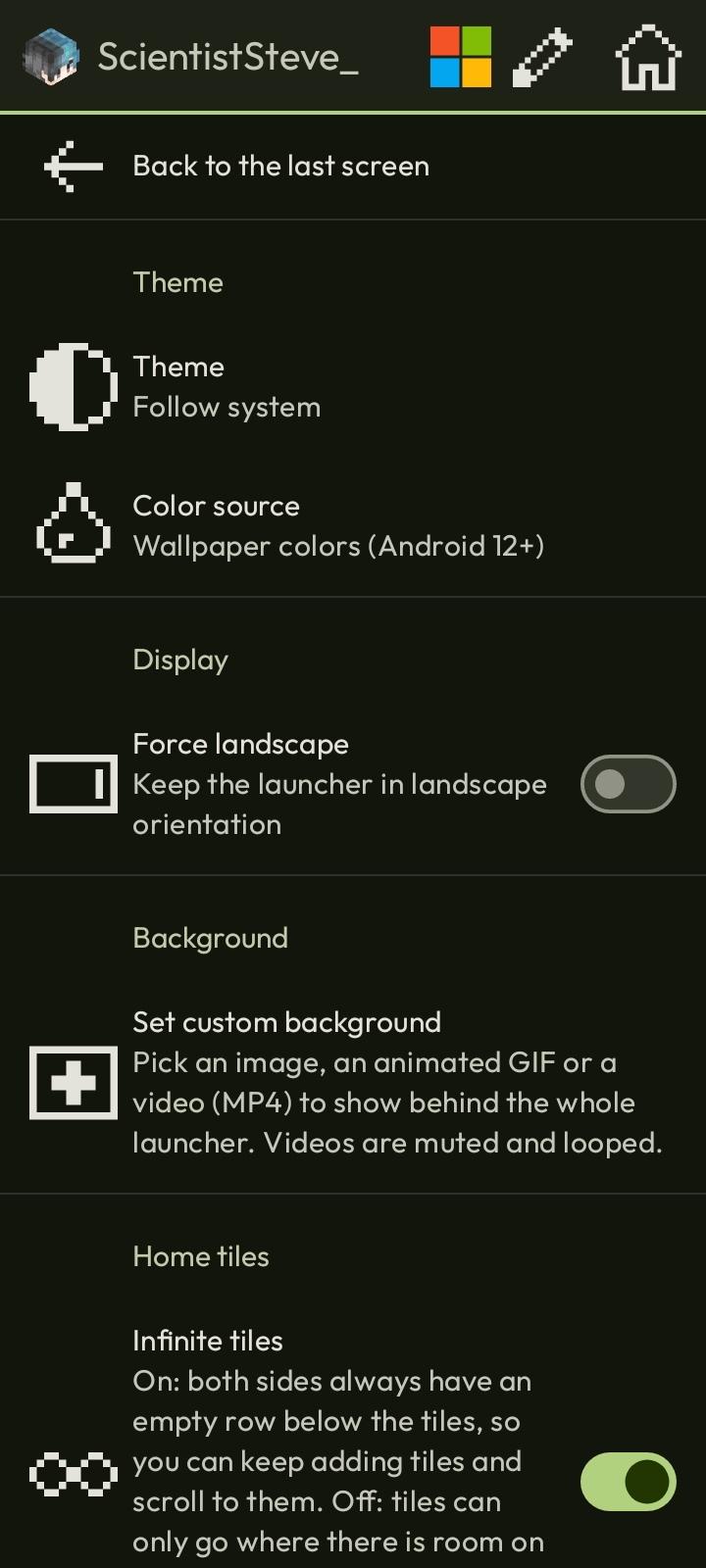
Set custom backgrounds — even animated .mp4 and .gif wallpapers — switch colour themes, and play in landscape mode. Make the launcher truly yours.
Content browser
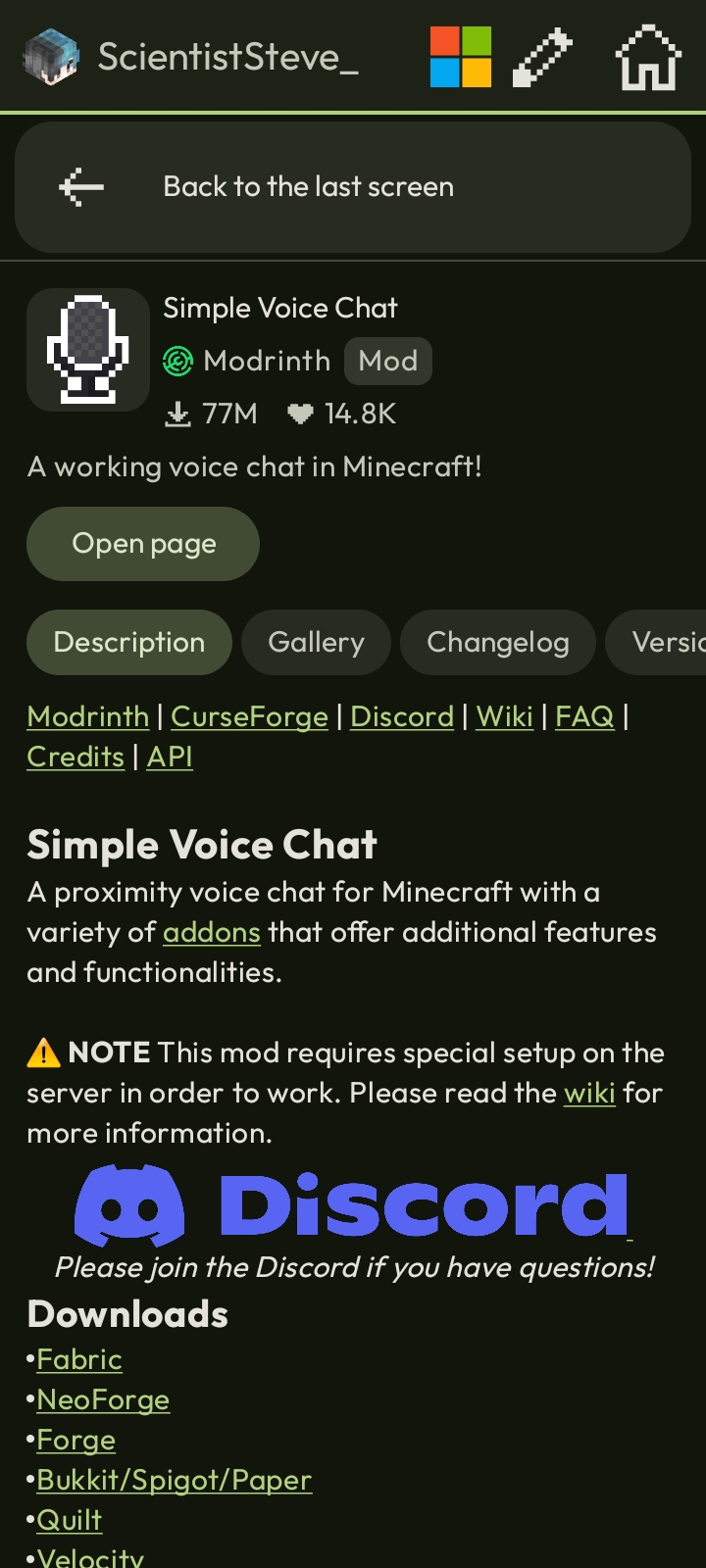
Browse, download, and update mods, resource packs, and shaders straight from Modrinth & CurseForge.
Modpack import
Import .mrpack and CurseForge .zip modpacks in just a couple of taps.
Isolated instances
Keep game data separate per instance, so different mod setups never interfere with each other.
Effortless log sharing
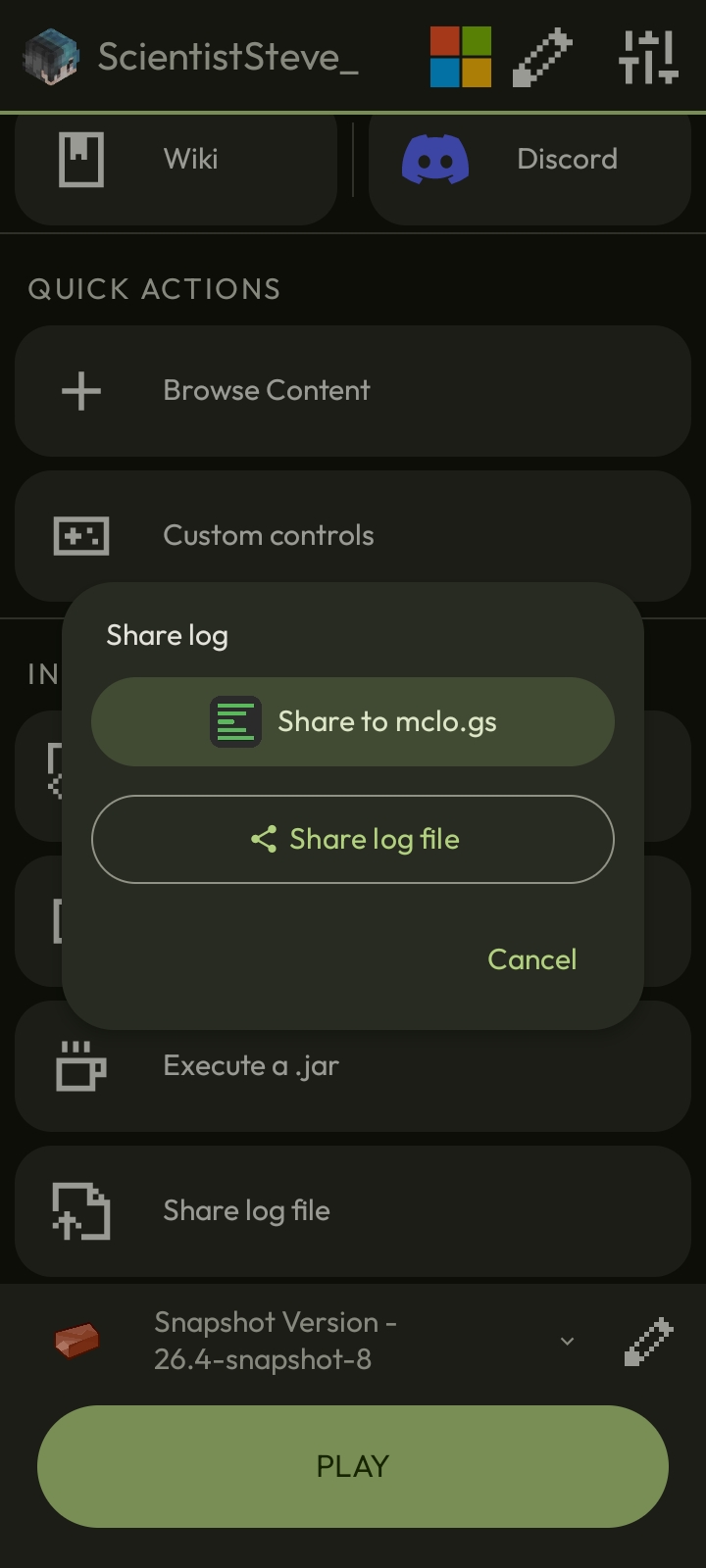
Upload crash logs straight from Copper to mclo.gs in one tap — or export the raw file.
Skin manager
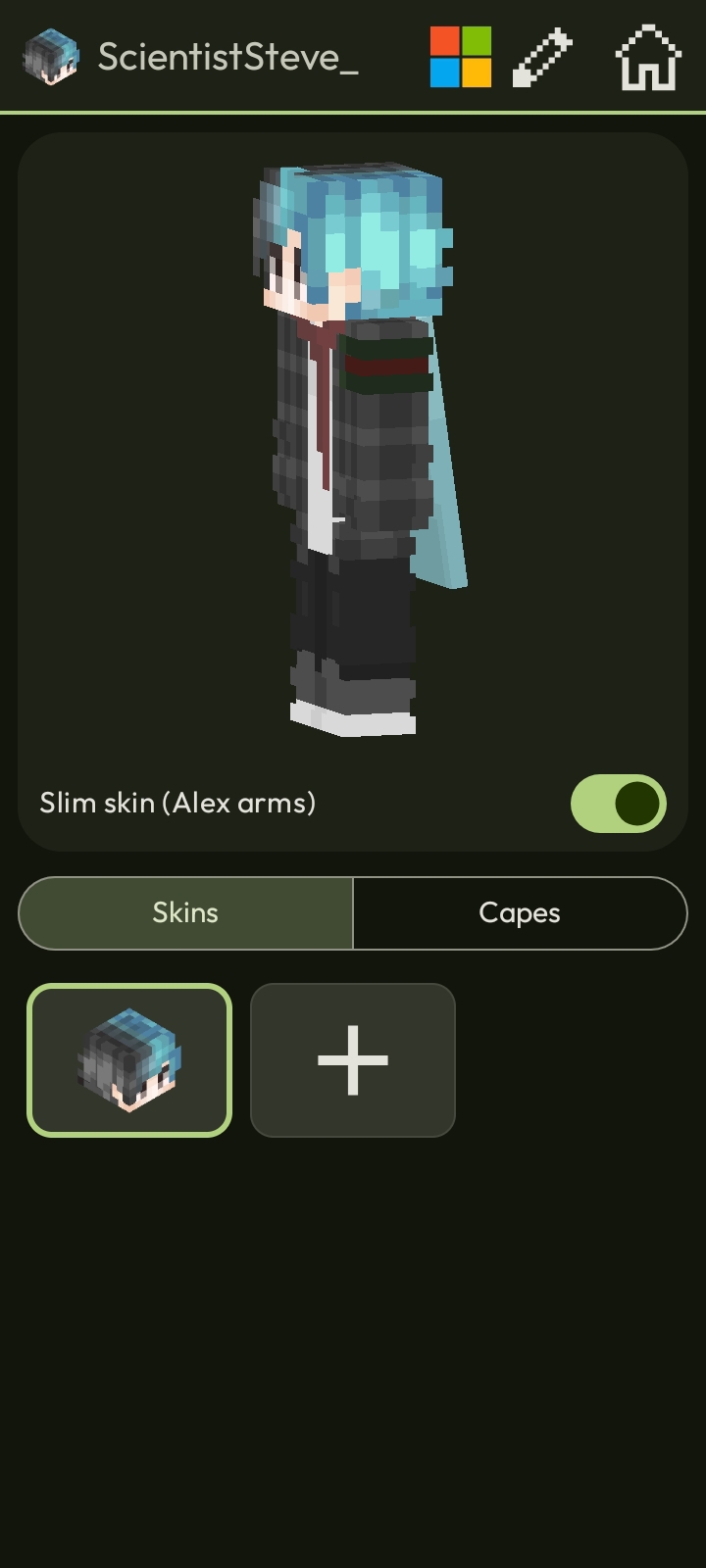
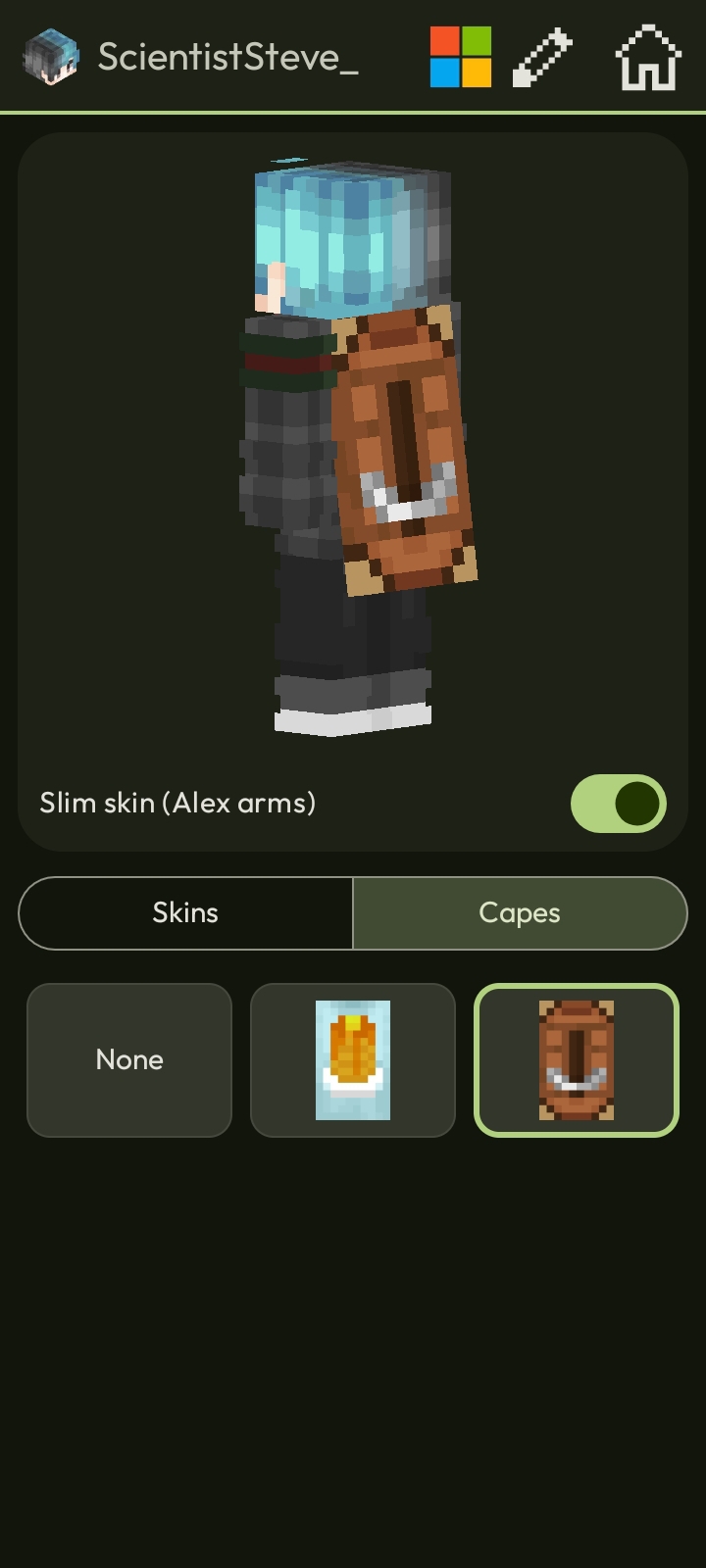
Manage and swap your Microsoft account skins right inside the launcher.
Pick your renderer
Holy GL4ES, LTW, MobileGlues, and more — choose the backend that best fits your device and mods.
Almost every version
From rd-132211 to the newest 26.x snapshots, including Combat Test builds.
Take a look inside
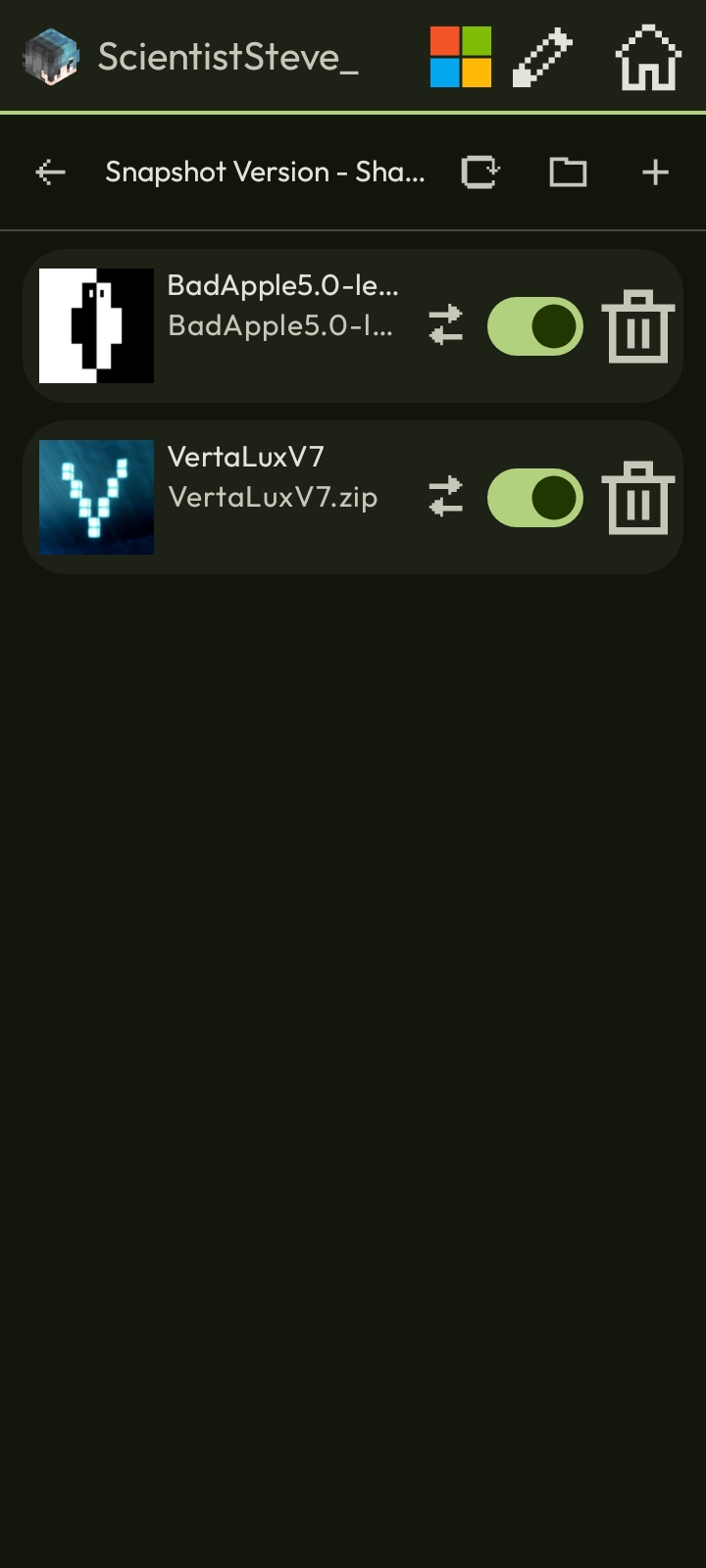
Main menu, instances, mod browser, skins and capes, shaders, appearance settings, and log sharing.
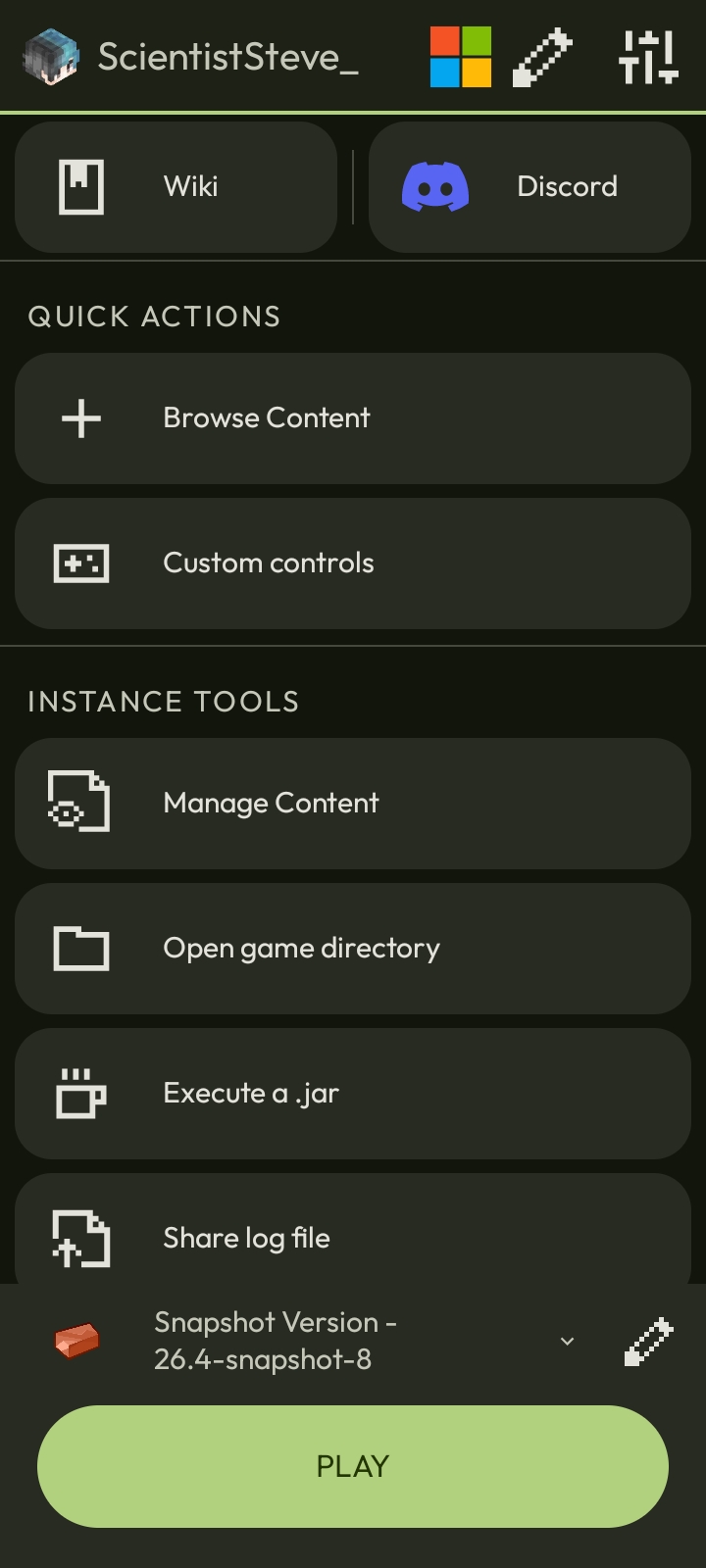
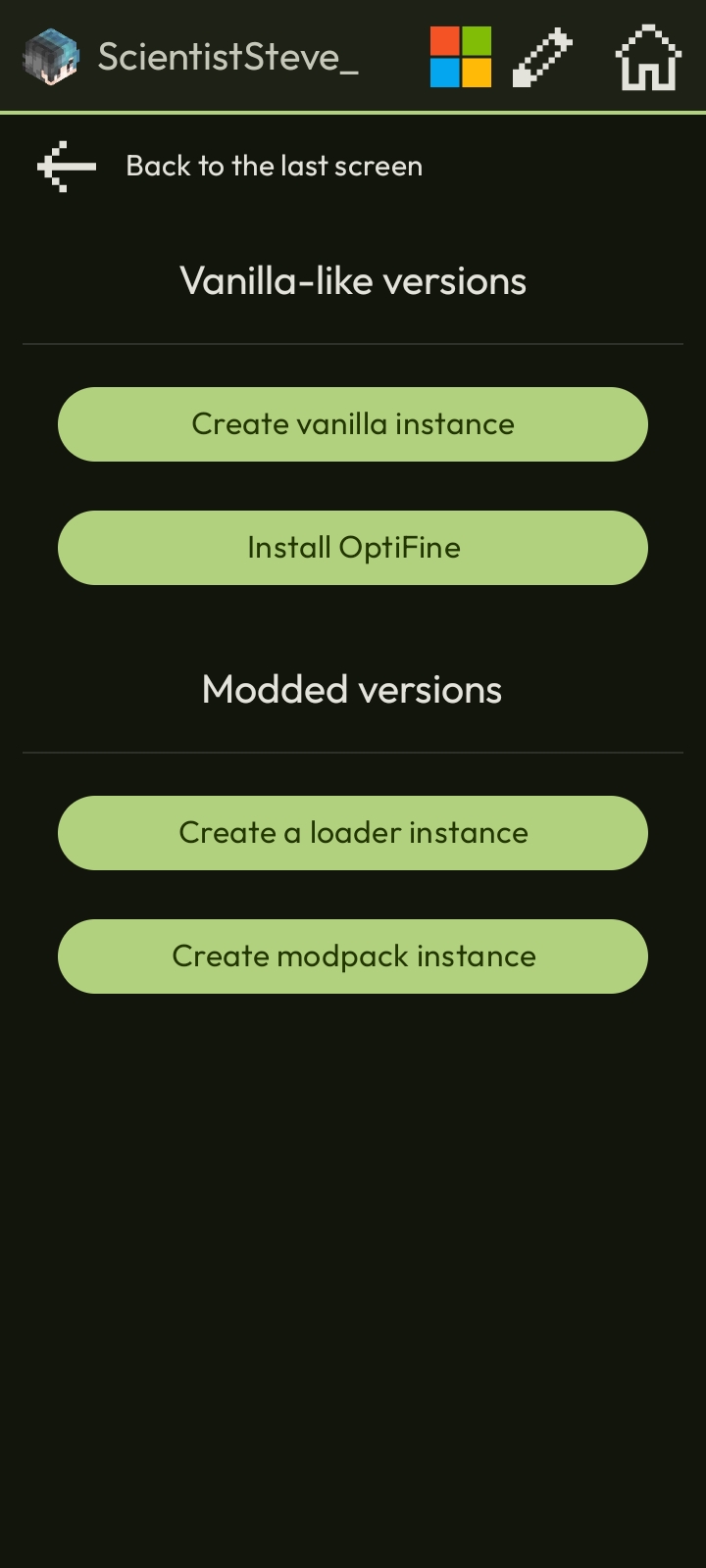
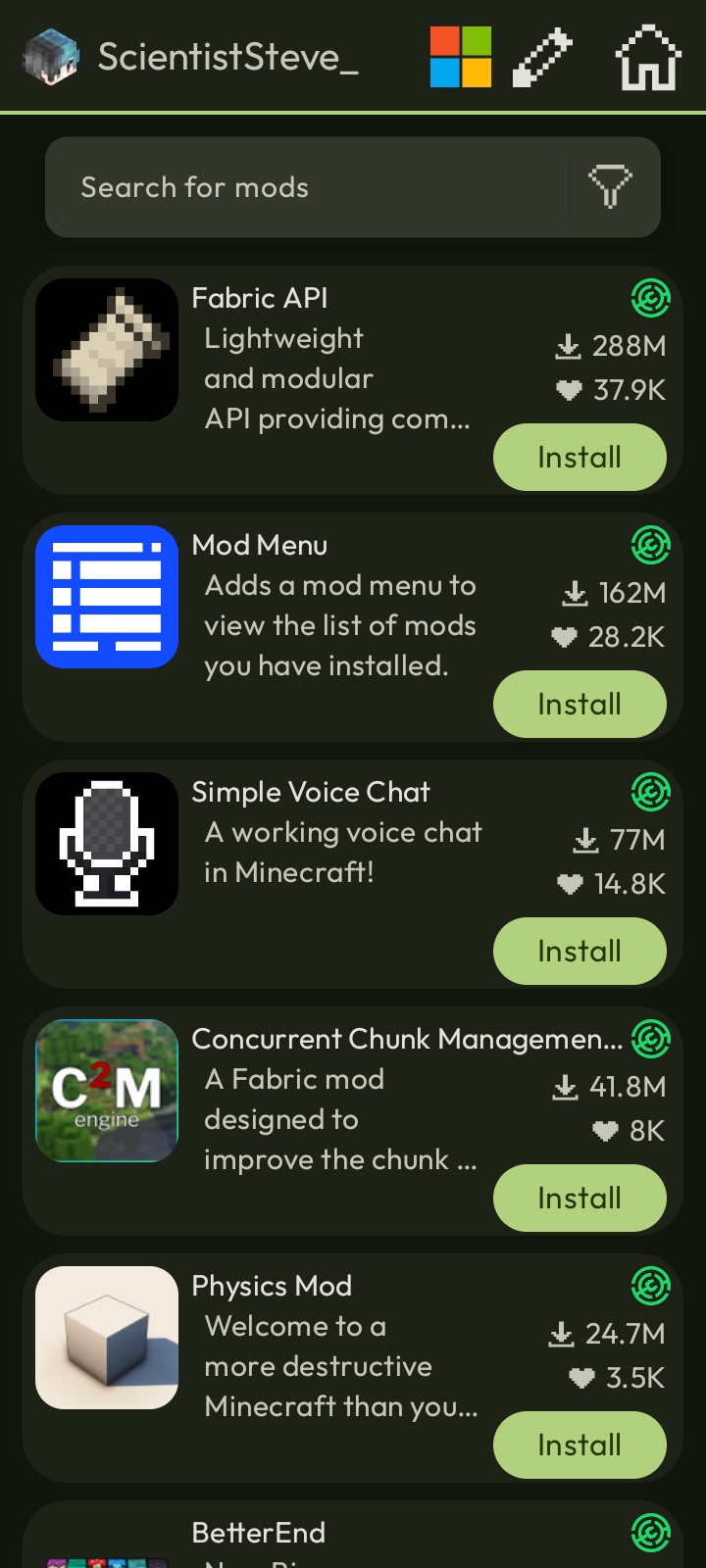
From install to your first block
Follow these quick steps and you'll be in-game within minutes.
Installation
Download the latest prebuilt app from GitHub Releases and install it.
Add an account by tapping + Add Account in the top-left corner of the screen.
If you own Minecraft: Java Edition, signing in with your Microsoft account is strongly recommended. Only use a Local Account if you don't own the game.
To set up a fresh vanilla instance, tap the ^ icon at the bottom right to open Select Instance, tap + Create New Profile, and pick Vanilla Like Profile. Give it a name and an icon if you'd like.
To pick a specific Minecraft version, tap the latest-release box, select your desired version, and hit Save.
Tap Play and wait for Copper to download the required game files.
Modding
The easiest way to mod your game in under two minutes — without ever leaving the launcher.
Tap Browse Content on the main menu.
Select Mods.
Search for the mod you want.
Open its page and hit Install.
Double-check that the mod version matches your Minecraft version and modloader, otherwise the game will crash!
To manage or remove installed mods, tap Manage Content on the main menu and pick Mods.
Tap Browse Content on the main menu.
Select Shader Packs.
Search for the shader pack you want.
Open its page and hit Install.
Make sure you also have Sodium and Iris installed in your
modsfolder.To manage installed shaders, tap Manage Content on the main menu and pick Shader Packs.
Tap Browse Content on the main menu.
Select Resource Packs.
Search for the resource pack you want.
Open its page and hit Install.
To manage installed resource packs, tap Manage Content on the main menu and pick Resource Packs.
Frequently asked questions
Answers to the most common questions from our community. Please read through carefully.
Safety & downloads
Is Copper safe to use?
Yes. Copper contains zero spyware, malware, ransomware, or trojans — and it isn't vibecoded by AI either. You can inspect every line of code yourself on GitHub.
Where should I download Copper from?
Only download or update Copper from the official GitHub repository. Copper is not distributed on any other websites or third-party app stores. If you spot a site claiming otherwise, please let us know on Discord.
Renderers & graphics
Which renderer should I use?
Holy GL4ESUp to 1.21.5
- Lightweight engine with top raw performance
- Limited compatibility with mods & shaders
- Does not support Minecraft 1.21.6+
LTW1.17 → latest
- Nearly as fast as GL4ES
- Great compatibility with most mods & shaders
- Heals skin cancer
Zink1.0 → 1.21.5
- Broad compatibility with almost all shaders & mods
- Very slow performance
Krypton Wrapper1.0 → latest
- Handles more demanding shaders
- Supports almost every Minecraft version
- Exposes more advanced OpenGL features
- Runs Sodium on Minecraft 1.16.5
MobileGlues1.17 → latest
- Nearly as fast as GL4ES
- Solid compatibility with mods like Sodium & select shaders
- Heals skin cancer
What does “Alternate Surface Renderer” do?
To display anything on screen, Android uses a window made of a producer–consumer pair, where the producer is the OpenGL driver running Minecraft. This setting lets you choose which consumer receives the frames.
Off: uses surfaceflinger (Android's system compositor), which enforces stricter frame pacing. On capable devices, micro-stutters virtually disappear.
On: uses a TextureView to draw frames through the standard Android view hierarchy. This lowers synchronisation overhead — giving higher FPS numbers, though powerful devices may notice occasional stutters.
Loading screen flickering or a black screen?
Turn off Force 4x MSAA in your device's Developer options. Note that this fix only applies if you can still hear Minecraft's menu music and tap buttons blindly — it won't resolve red-screen flickering or black screens caused by incompatible mods.
Open your Android Settings.
Go to Developer options (if hidden, go to About phone and tap Build number seven times).
Locate Force 4x MSAA and switch it off.
Good to know: Force 4x MSAA does not boost FPS. It forces hardware anti-aliasing, which often breaks rendering in launchers like Copper, Mojo, Zalith, and Amethyst.
Mods & modpacks
Which modpacks do you recommend?
For the best performance on mobile, we recommend well-tested, community-trusted optimisation modpacks:
We do not offer support for low-effort or AI-generated modpacks, including:
We also advise against modpacks published by Spunky Insaan, RKMC_GAMERZ, & DNA Mobile Gaming, as their packs are typically bloated, AI-assembled, and packed with misleading claims.
Popular mods that don't work on Android
GL_EXT_clip_cull_distance extension.Unsupported & blacklisted mods
We do not support or troubleshoot any of the following clients or mods.
Cheats & hacked clients
NSFW content
What's shipped, what's next
Shipped
- Instance system in favor of profiles
- Out-of-the-box 1.21.5 support
- mrpack / CurseForge zip import
- LTW: compute shader / image extensions enabled
- Mod / content manager & browser
- Option to share logs to mclo.gs
- Launcher fully Material 3
- Microsoft skin manager
Planned
- LTW: resolve issues with Create
- LTW: switch to a color-renderable format for framebuffers
- Modpack management tool
- MMC-compatible instance import
- Vintage Story support
- Implement a common native library standard
Known issues
- Some physical mice may have very slow cursor speed.
- On Holy GL4ES, large texture atlases may appear distorted (causing stretched or blocky textures in heavy modpacks).
- Probably a few more — that's what our bug tracker is for ;)
Join the conversation
Got a question, spotted a bug, or want to pitch in? We'd love to hear from you.
Discord
Chat with the community, get help, and share your setups.
Bug tracker
Report bugs and suggest new features on GitHub.
Contribute
Code, docs, or translations — fork the repo and open a PR.
Translate
Help localize Copper into more languages.
Contributing
Contributions are always welcome! We appreciate every kind of help, not just code — you can help shape up the wiki or contribute translations too.
Please submit any code changes as a pull request. Include a clear description of what your changes do and how to test them.
Built on open source
Third-party components, licenses, and upstream sources that make Copper possible.
Design inspired by PixelPlayer Web — the Material 3 Expressive landing page for PixelPlayer. Thank you for the design groundwork this site follows.
Thanks to Mineskin for providing Minecraft avatars.
Thanks to MojoLauncher for the Android icons, made by Yarpopcat08.
Thanks to whynelo for the new Copper icons.
Ready when you are
Download Copper and start playing Minecraft: Java Edition on your Android device.